Overview
The Barnes & Noble NOOK app for Android primarily supports EPUB files (the industry standard for eBooks) and PDF documents. These files must be DRM-free (unprotected) to be opened directly.
How This Page Helps
While the app is capable of reading these files, it does not automatically detect them by default. The instructions on this page will guide you through the hidden setup process to recognize and display your personal content on your device.
Process
-
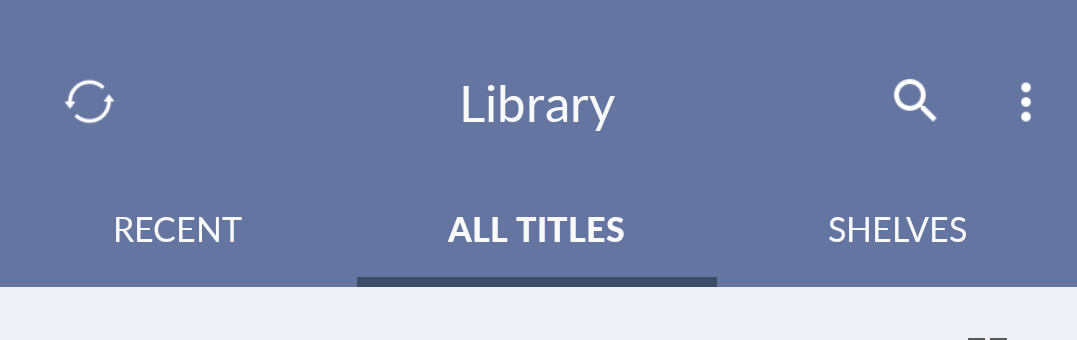
Open the B&N NOOK for Android app. Go to the All Titles section.
-
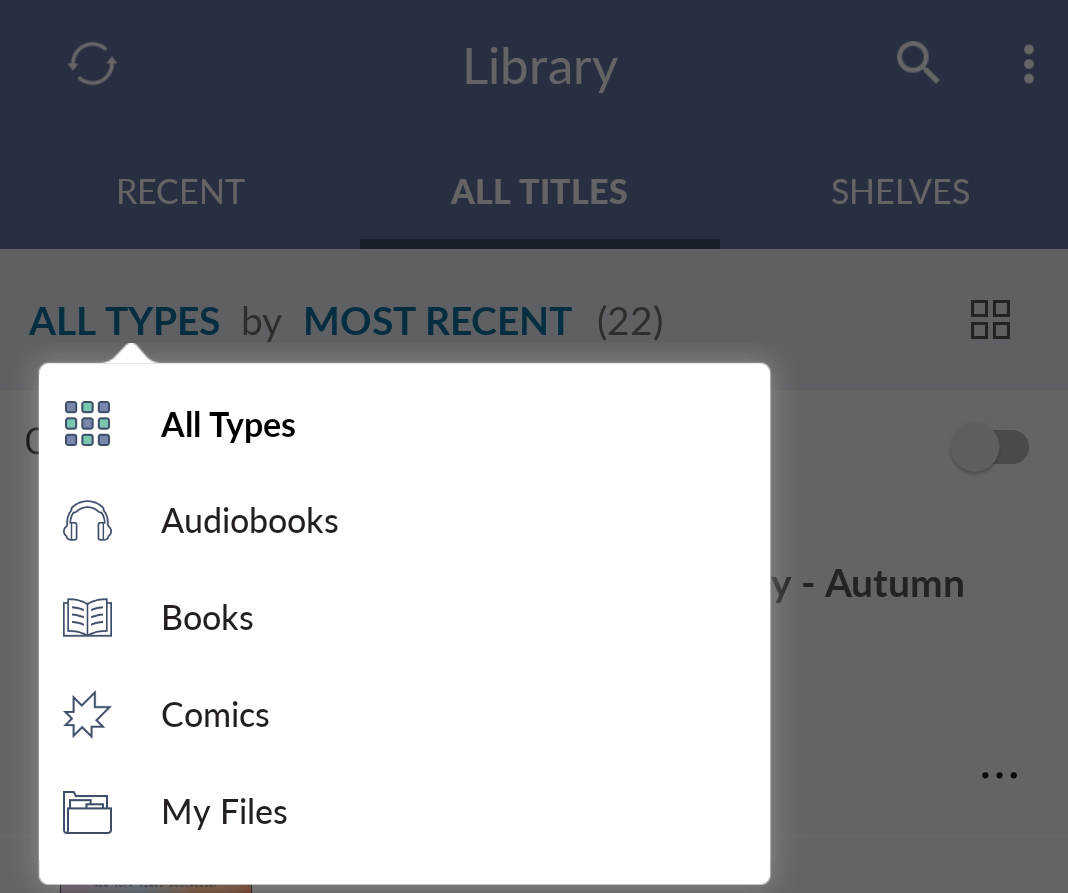
Tap the All Types filter, then tap My Files
-
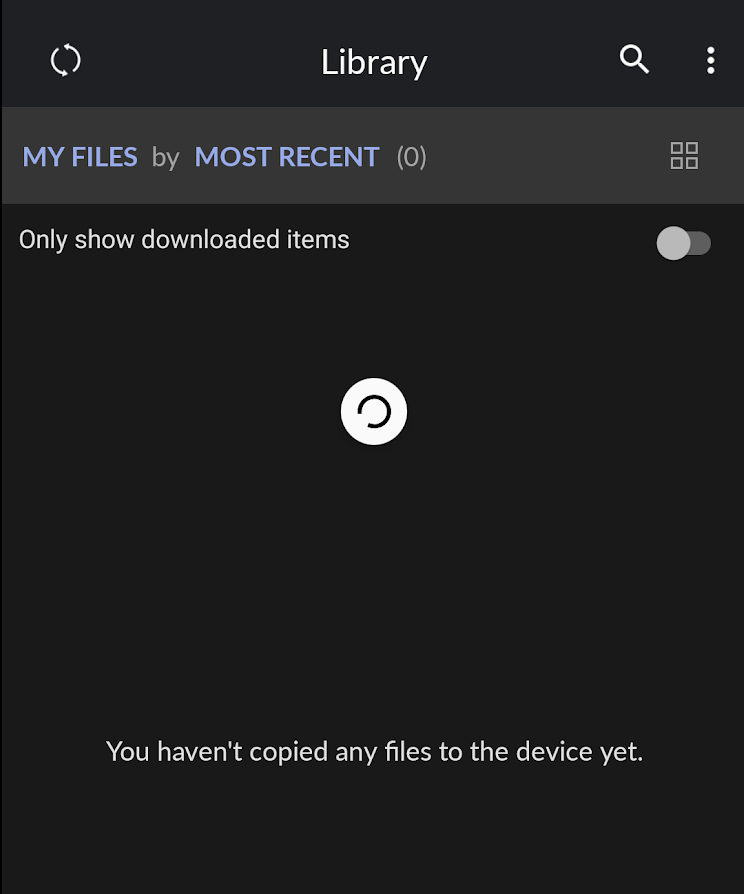
In the app you will see To see sideload files, please enable sideloading. and the tappable text: ENABLE SIDELOADING. Tap it.
-
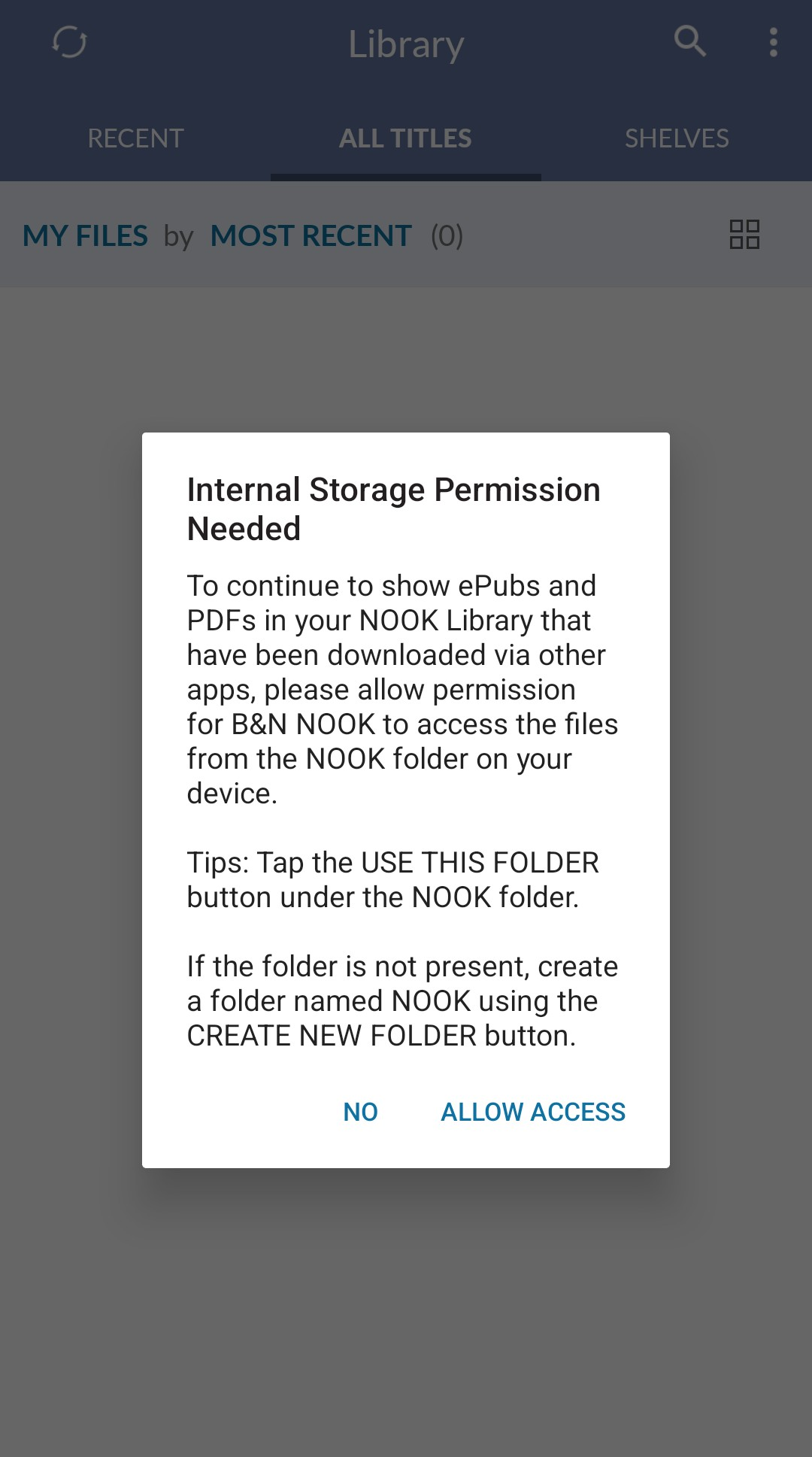
A Internal Storage Permission Needed prompt will appear. Tap ALLOW ACCESS.
-
You will be taken to the Files app (Or an equivalent File Manager app on your device.) where you will either:
- Choose a folder where EPUB content has been saved.
- Or create a folder that will place content.
Finally, choose Use this folder.
-
Tap Allow in the Allow B&N NOOK to access files in (folder NAME)? (Where folder NAME is whatever existing folder you chose or the folder you created).
-
If you didn’t have any EPUB content in the folder you choose or created, you will see You haven’t copied any files to the device yet. in the content list section
-
After moving content into the folder, navigate to the B&N NOOK app and it may auto-refresh and show the ebooks. If this doesn’t happen, swipe down in the center of the screen to initiate a manual refresh. Your content should appear.